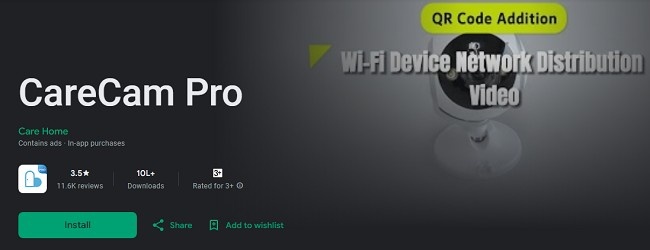
CareCam Pro App - Download & Enhance Your Home Security Today
In the ever-evolving world of smart home security, having an intuitive and reliable application to monitor your surroundings is crucial. The CareCam Pro app is designed to provide seamless remote video monitoring, motion detection alerts, and a host of other features that ensure your home and family are safe at all times. This guide will walk you through how to get started with CareCam Pro, set it up on your device, and maximize its features for an enhanced user experience.
Download CareCam Pro App on Your Android & iOS Devices
Step 1: Downloading the CareCam Pro App
For Android Users:
Open the Google Play Store on your Android device.
In the search bar, type "CareCam Pro" and hit enter.
Locate the app from the search results and tap on it.
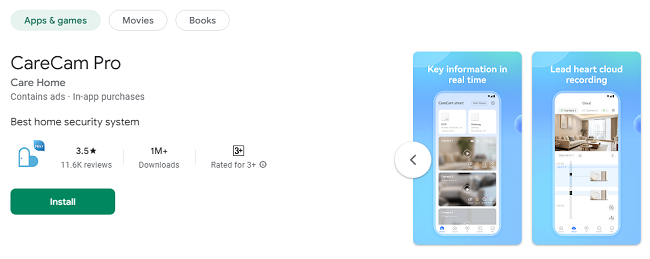
Click the "Install" button and wait for the app to download and install.
For iOS Users:
Open the Apple App Store on your iPhone or iPad.
Use the search bar to look for "CareCam Pro."
Select the app from the results and tap the "Get" button.
Authenticate the download using your Apple ID or Face/Touch ID, and the app will install automatically.
Tip: Ensure your device’s operating system is updated to the latest version to avoid compatibility issues.
Step 2: Creating an Account
Launch the CareCam Pro app after installation.
Tap the "Sign Up" button to create a new account.
Enter your email address and set a secure password.
Verify your email by clicking on the confirmation link sent to your inbox.
Log in to the app using your credentials.
Pro Tip: Use a strong password containing a mix of letters, numbers, and special characters to keep your account secure.
Step 3: Setting Up Your Camera
Plug in your CareCam Pro device and ensure it’s powered on.
Connect the camera to your Wi-Fi network. The app will prompt you to scan a QR code displayed on the camera screen or enter the camera’s serial number manually.
Follow the on-screen instructions to sync your camera with the app.
Once connected, you’ll see a live feed from your camera on the app dashboard.
Troubleshooting Tip: If the camera doesn’t connect, ensure your Wi-Fi network is 2.4GHz, as many smart devices are not compatible with 5GHz networks.
Exploring Key Features of the CareCam Pro App
1. HD Live Streaming:
The CareCam Pro app offers crystal-clear HD video streaming. You can zoom in on specific areas and maintain image clarity. This feature is particularly useful for monitoring small details or ensuring everything is as it should be.
How to Use:
Open the app and select the camera you want to view.
Use pinch gestures on the screen to zoom in or out.
2. Two-Way Audio:
This feature allows you to communicate with family members or warn off intruders in real time.
How to Use:
Tap the microphone icon on the live feed screen.
Speak into your device to transmit your voice through the camera.
3. Motion Alerts:
Stay informed about any unusual activity with instant motion detection notifications.
How to Use:
Go to the settings menu and enable motion detection.
Customize sensitivity levels and set specific activity zones to reduce false alarms.
4. Home/Away Assist:
Switch between Home and Away modes effortlessly to manage your devices with a single click.
How to Use:
Navigate to the Home/Away Assist section in the app.
Configure the devices you want to control in each mode and save your preferences.
5. Camera Sharing:
Grant access to trusted family members securely.
How to Use:
Go to the camera settings and select "Share Camera."
Enter the email address of the person you want to share access with and send an invitation.
Manage shared users by revoking access anytime.
6. Video History:
Never miss an important moment with the app’s video history feature, which stores recordings on an SD card and the Care Cloud.
How to Use:
Insert an SD card into your camera for local storage or subscribe to the Care Cloud for additional storage options.
Access the "History" tab in the app to review recorded footage.
7. Extended Accessory Support:
Enhance your home security with additional accessories like motion, contact, and smoke sensors.
How to Use:
Pair the accessories with your camera through the app settings.
Monitor and manage these devices from the app’s dashboard.
Advanced Customizations of CareCam Pro
Adjusting Camera Settings:
Go to the camera’s settings menu.
Configure options such as night vision, video quality, and audio settings.
Schedule specific times for the camera to record or send alerts.
Integrating with Smart Home Systems:
The CareCam Pro app supports integration with popular smart home ecosystems like Google Assistant and Amazon Alexa.
How to Set Up:
Open the integration settings in the app.
Follow the instructions to link your CareCam Pro account with your smart home system.
Use voice commands to control your cameras effortlessly.
Tips for Optimal Use
1. Regular Updates:
Keep the app updated to access the latest features and security enhancements.
2. Proper Placement:
Install your cameras in strategic locations for maximum coverage, such as entry points and common areas.
3. Backup Your Data:
Use the Care Cloud to store important recordings securely and avoid losing them due to SD card issues.
4. Monitor Battery Life:
If your camera is battery-operated, ensure it’s fully charged or replace batteries as needed to maintain uninterrupted service.
Conclusion
The CareCam Pro app is a comprehensive solution for managing your home security with ease. From HD live streaming and two-way audio to motion detection alerts and video history, it equips you with everything you need to stay connected and secure. By following this guide, you can set up and use the app effectively, ensuring your loved ones and property are always protected.
Updates